ISSUE

104


Nov 2020

ITU Logo with text

TOUCH BASE

e-Newsletter


Content

1. Workaround on Microsoft Onedrive Connection

2. Update on Hybrid Teaching

3. Tips for creating poll during Microsoft Teams meeting

4. Reminder: Backup course materials at Moodle, OneDrive and TempCloud before semester end

5. What can you do with the ‘Briefing’ email from Cortana?


1. Workaround on Microsoft Onedrive Connection

User is drawn attention on the following workaround if encountering connection issue to Microsoft Onedrive.


Accessing your OneDrive –via MS teams Desktop App

1. You may click “Files” -> “OneDrive” and you may access your OneDrive materials


Access shared class video (student) – via the OneDrive App from iPhone / iPad*
1. Install OneDrive app in your mobile phone / tablet
2. Access shared link in mobile device, i.e., login to Moodle to access video link
3. The video will be played via OneDrive app
*Please update to latest iOS version

2. Update on Hybrid Teaching

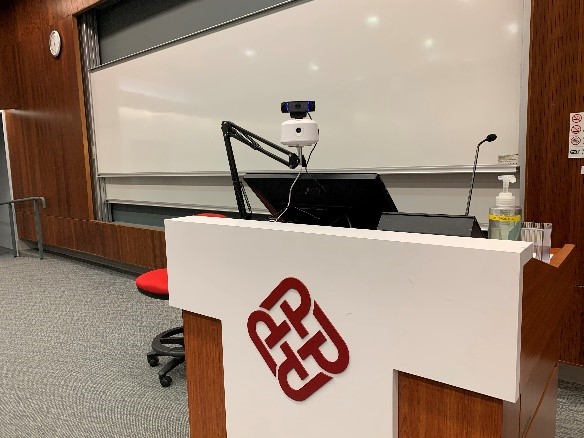
Trial deployment of 360 camera
To provide more flexibility to lecturer, ITU has carried a trial setup of 360 camera in the following venues in HHB and WK campus. A quick survey will be sent to room users for feedback and following full setup in all teaching venues in 2 campuses.


HHB Campus WK Campus
UG11 SUG02
109 SUG03
209 S102
326 S103
508 N203
603 N213
707 S215


Using Visualizer for Hybrid Teaching
ITU is pleased to announce visualizer support is ready. Colleagues can refer to video guide in IT Support Page ( Https://it-support.cpce-polyu.edu.hk) (under Hybrid Teaching page) for steps and software needed.
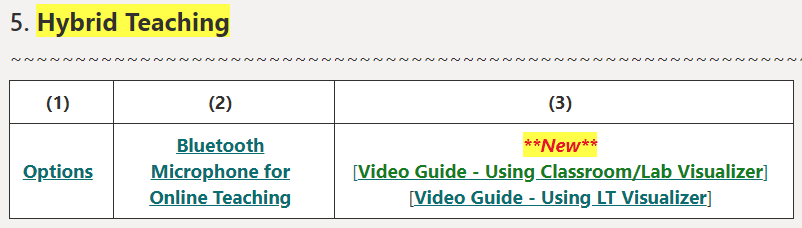


Please note the setting does not apply for HHB IT lab (running Windows 7) on software compatibility issue.


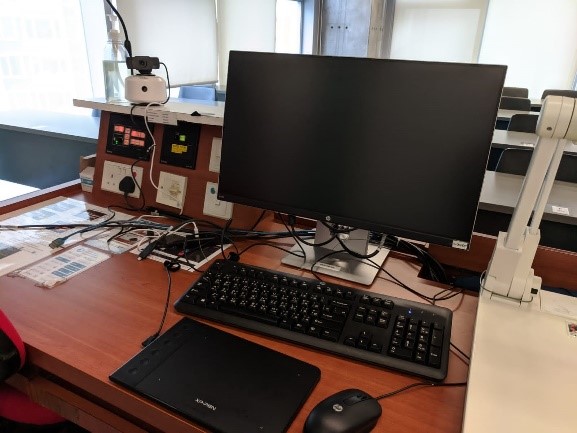
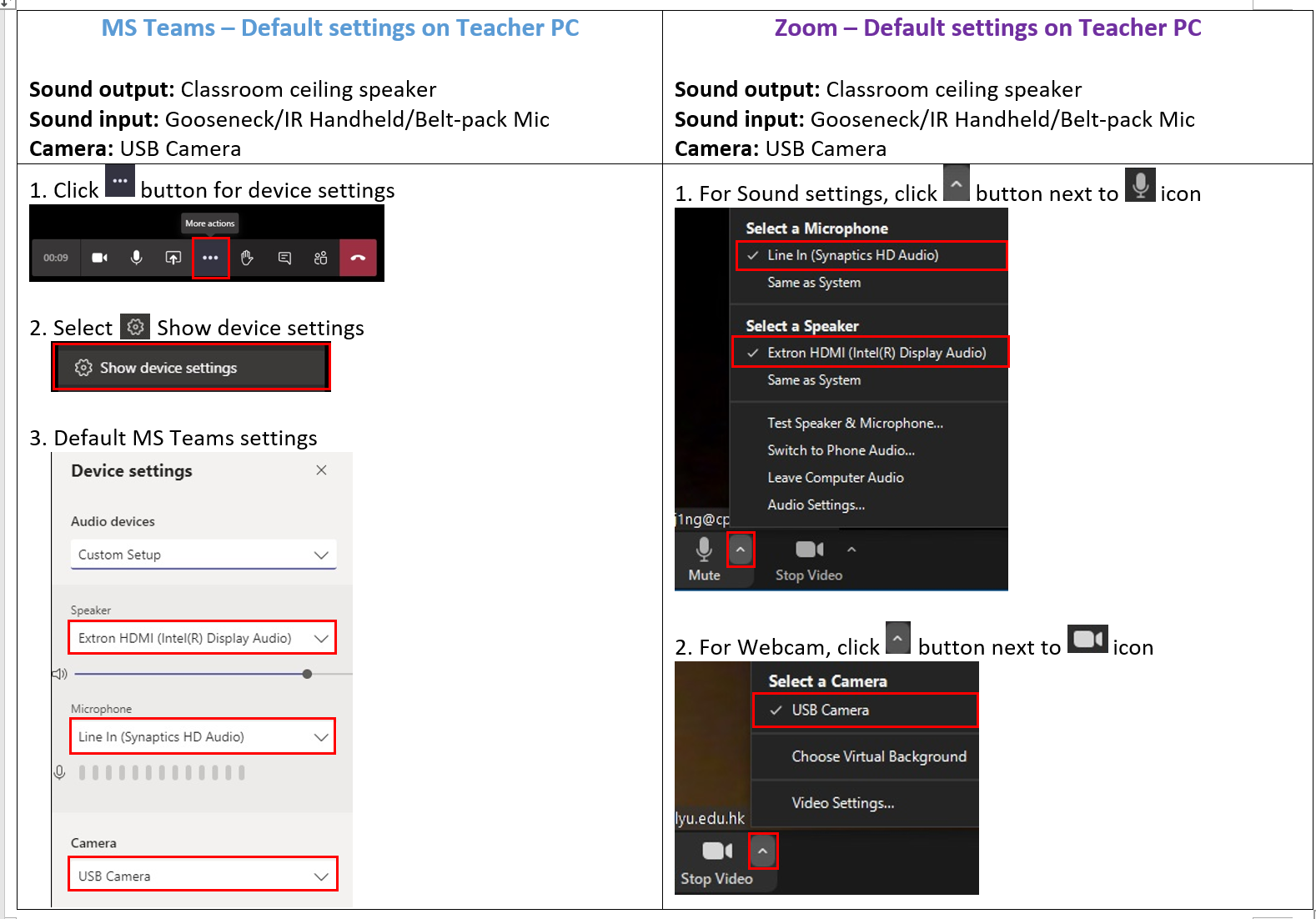
Default settings of audio and web cam on Teacher PC


Sound Output: Classroom ceiling speaker
Sound Input: Gooseneck/IR Handheld/Belt-pack Mic
Camera: USB Camera


How to perform a quick check on audio and web cam?


Please follow the steps below:
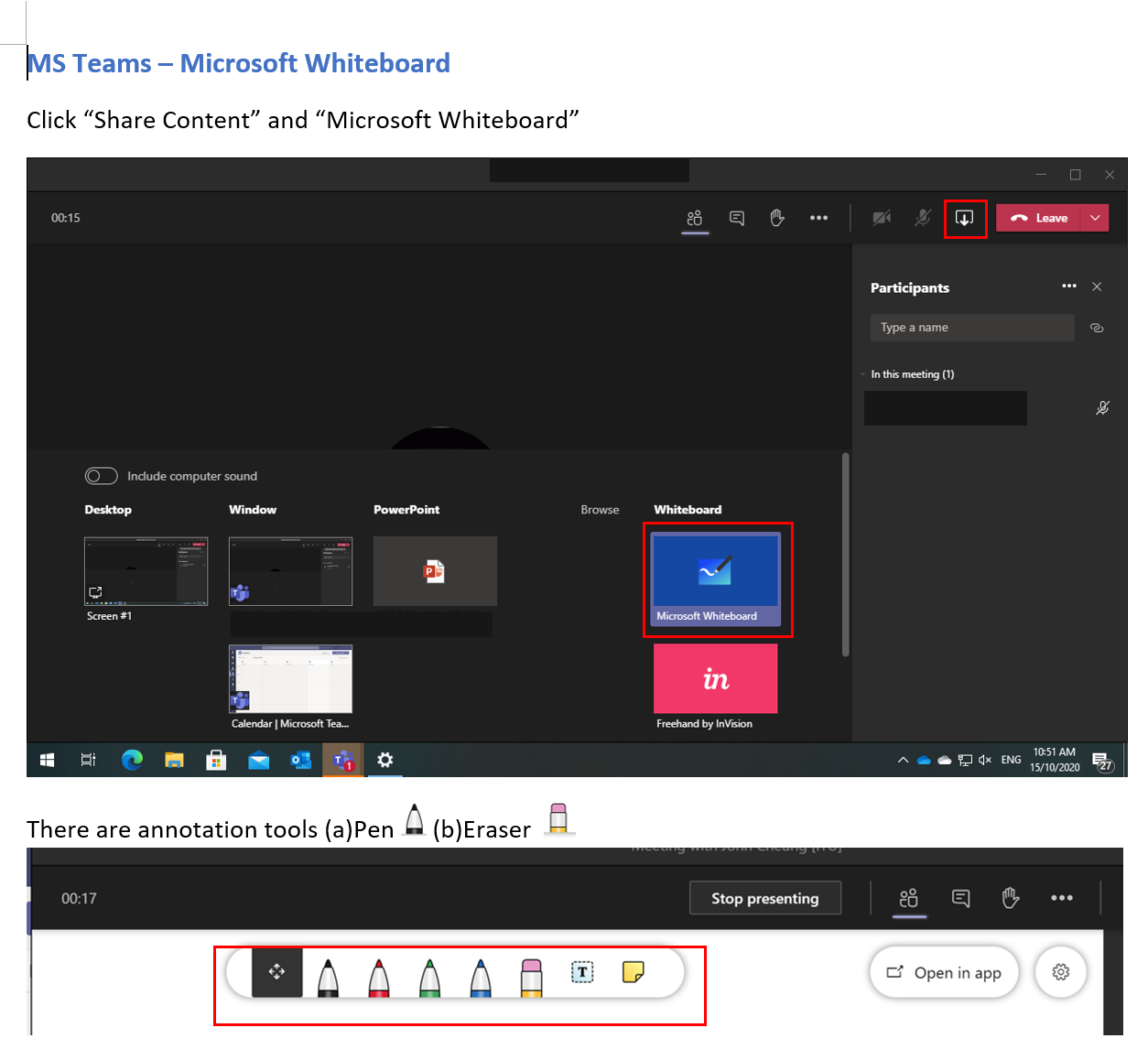
Use of Writing Tablet with MS Teams Whiteboard
There is a quick guide on lectern on the topic for reference

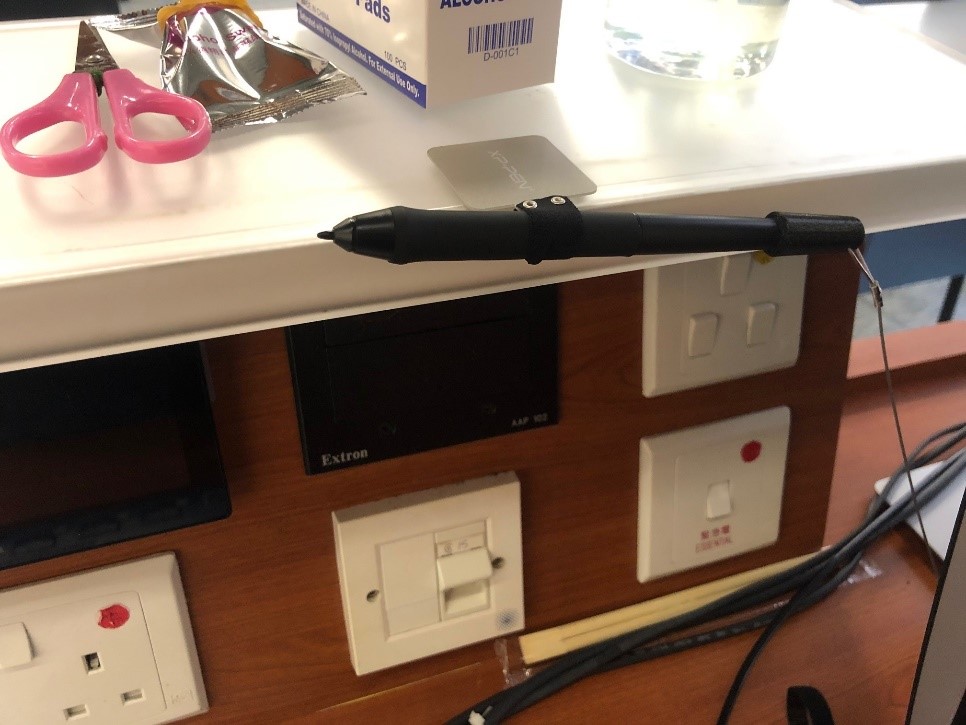
How to avoid touching the stylizer of hand writing tablet accidentally when it is not in use?
Please put it to pencil holder, this will avoid moving of mouse pointer unintentionally as well.


How can your students in classroom perform voice communication with online students over Teams/Zoom?


Classroom students may:

  1. Join the Teams/Zoom then speak directly to their mobile phone
  2. Speak to Gooseneck / Desktop Microphone in Lectern

3. Tips for creating poll during Microsoft Teams meeting

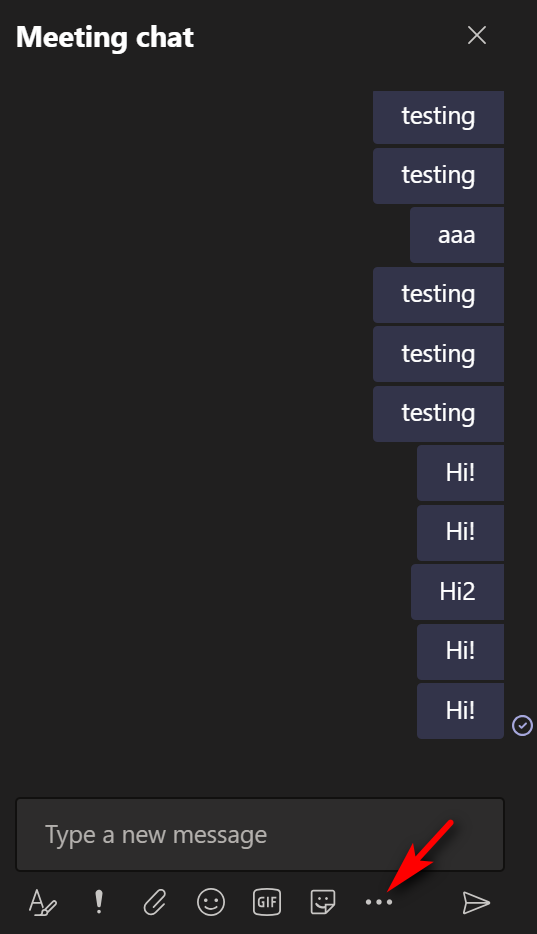
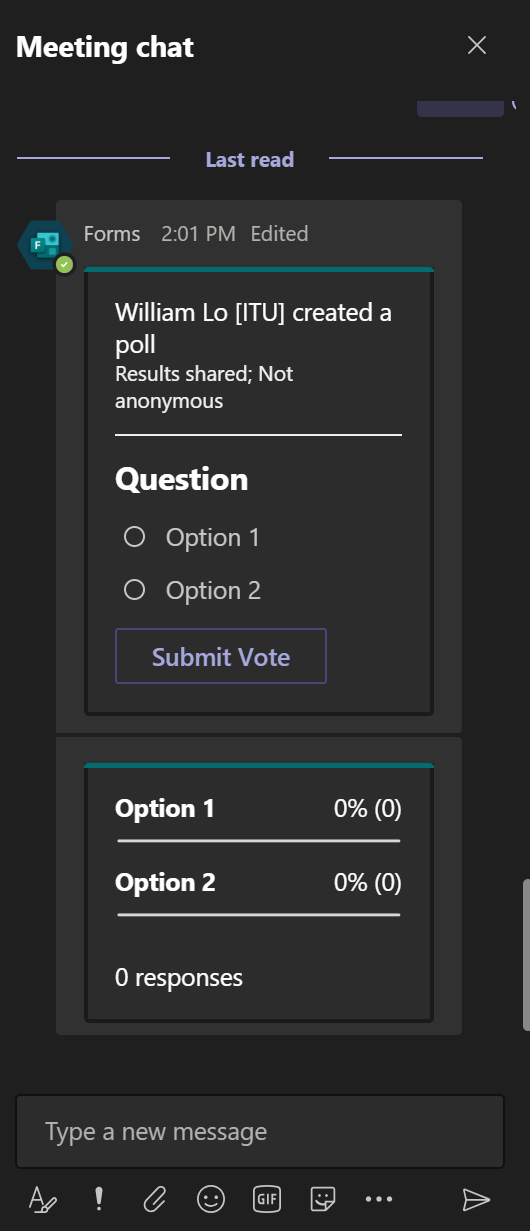
Poll can be created by Microsoft Forms when Microsoft Teams meeting started.


1. Click the ‘Show conversation’ icon in the meeting tool bar.


2. Click the ‘…’ icon in the ‘Meeting chat’ section.


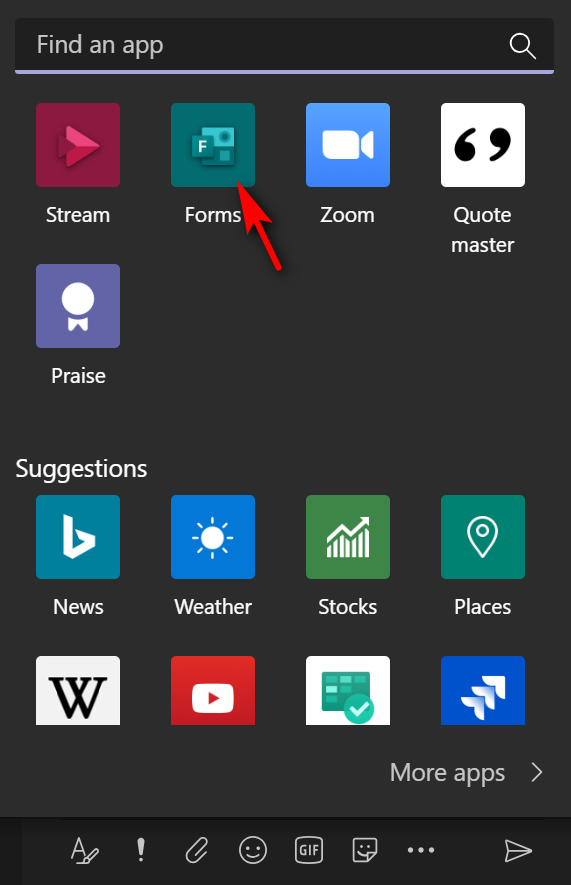
3. Select ‘Forms’ icon.


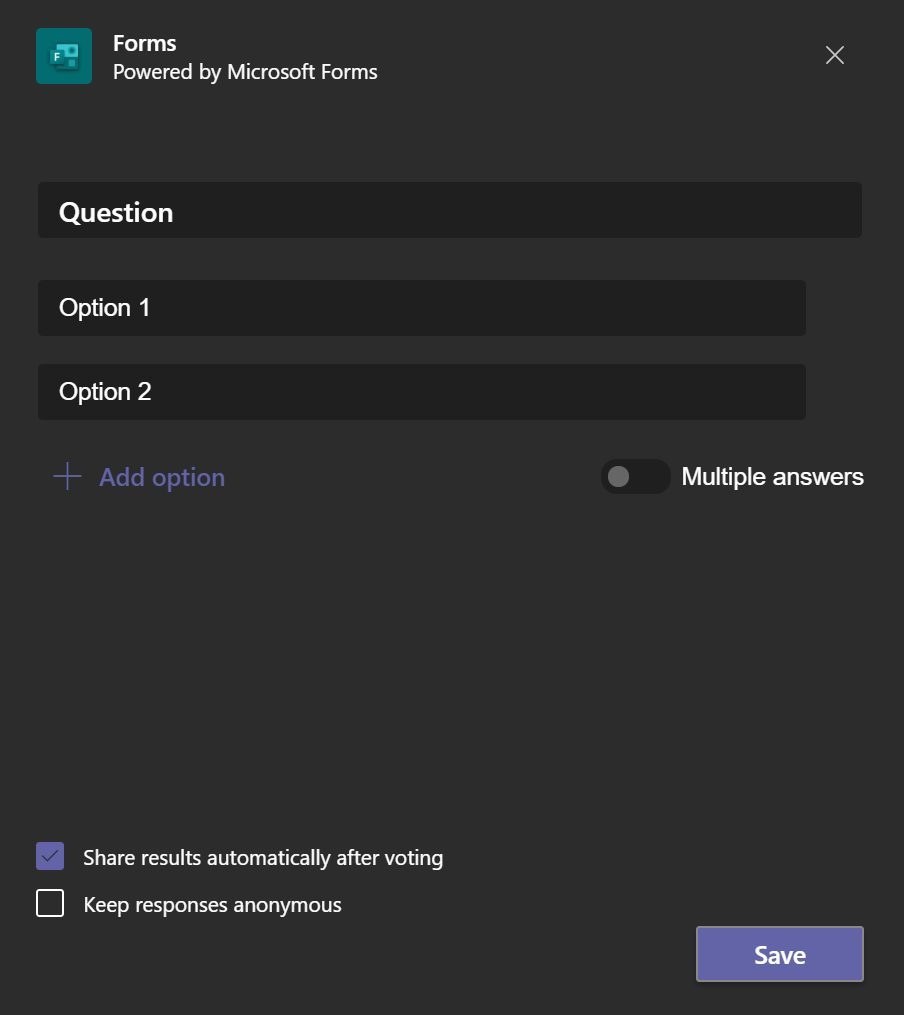
4. Input the subject and answers of the poll, then select whether ‘Share results automatically after voting’ or ‘Keep responses anonymous’ , click ‘Save’ button.


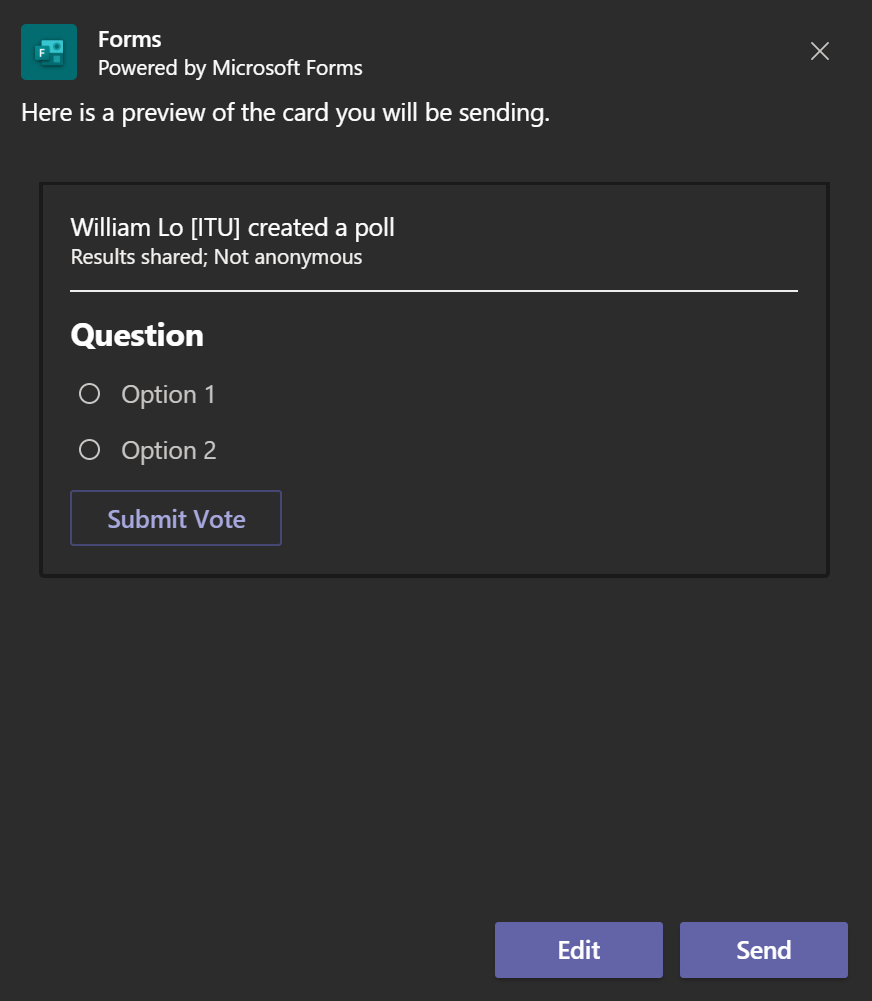
5. Check the question and setting and then click ‘Send’ button.


6. The poll will be shown in the Meeting chat and let the participants to vote.


4. Reminder: Backup course materials at Moodle, OneDrive and TempCloud before semester end

Please note that 1st semester will end soon, the courses of 1st semester will be archived when 2nd semester commence. Student will no longer access the course materials, OneDrive and TempCloud links from archived Moodle course.


Reminder:


  • Please backup course materials from Moodle if you need to keep them.
  • You are also recommended to backup the course materials from OneDrive and TempCloud.
  • In case students need to access the materials form archived course, you will need to seek your lecturer’s approval.
  • Lecturers will not be affected by this archive policy at Moodle, but files in TempCloud will be also archived periodically.

5. What can you do with the ‘Briefing’ email from Cortana?

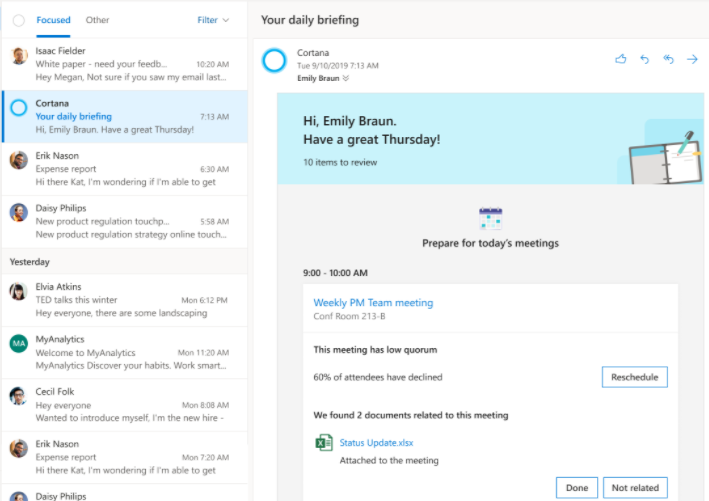
Microsoft introduces the ‘Briefing’ email service to the Microsoft 365 users from Oct 2020. You will receive the ‘Briefing’ email with the subject ‘Your daily briefing’ from Cortana.


The Briefing email helps you stay in control of your calendar and be intentional about your day. Within a few hours of the start of your workday, you'll get an email about any relevant items to help you better prepare for the day ahead, including:


  • Outstanding commitments, requests, and follow-ups to and from other collaborators in email that might have fallen through the cracks
  • Documents related to today’s meetings that you might want to review beforehand
  • Suggested focus time you can schedule to help get independent work done

Can users see information about other users in the Briefing email?
The Briefing email only includes existing information that’s already available in the user’s mailbox. It summarizes documents, emails, and meetings to make it easier for the user to find what’s most important for their day ahead. Users cannot see any new information about other users that wasn’t already available in their mailboxes.


How often does the email come?
One time per workday (as set in Outlook) when you have actions needed to prepare for a meeting or in response to an email. The email is not sent when you have no actionable items.


If I have no tasks or meetings, will I still receive a Briefing email?
No, you will never be sent an empty email with no content.


Can I stop receiving these emails?
Select Unsubscribe at the end of the email footer