1. Launching the Big Data Lab
It’s time to think big and actualise our brilliant research ideas. We are delighted to announce the launch of Big Data Lab, with the following objectives:
- To provide Big Data Lab as a Service (BDLaaS) by making use of cloud computing, machine learning and AI technologies;
- To coordinate the development of infrastructure to assist CPCE academic colleagues to make use of big data (data-driven) approach in conducting research; and
- To facilitate colleagues to apply for research grants using big data approach, for instance, to estimate the budget in big data collection and processing,
computing power and storage, analytics and presentation tools, etc.
At the “Development of Big Data Lab” research seminar on 26 November 2020, Dr. Jason Chan, JP Head of Information Technology discussed the nature of big data in different
dimensions, types of big data research, processing framework, visualization possibilities, ways of partnership, and collaboration with corresponding vendors.
Once interested colleagues have a concrete research plan as well as confirmed big data source provider(s), Dr. Jason Chan,
JP would be happy to offer assistance on ways to proceed further.
|
 |
 |
2. Email Account Migration Exercise (Teaching Staff and Students)
Further to ITU notice dated 10 Nov 2020 regarding Microsoft OneDrive incident,
ITU has been working closely with Microsoft to find the solution of the problem. After several rounds of discussion between ITU and Microsoft,
it is suggested the problem can be fixed only if teaching staff and students are using email account under the same tenant.
After the technical study, ITU suggested migrating all student emails and teaching staff emails registered in student tenants to a new email namely in June 2021,
(your_student_no@common.cpce-polyu.edu.hk) which will be configured under the same tenant in order to resolve the OneDrive issue, details are as follows:
|
Current email address |
New email address after migration in June 2021* |
| HKCC’s students |
eg
1913579A@student.hkcc-polyu.edu.hk |
1913579A@common.cpce-polyu.edu.hk# |
| SPEED’s students |
eg
1924680S@student.speed-polyu.edu.hk |
eg
1924680S@common.cpce-polyu.edu.hk# |
| Teaching staff email in student’s tenant |
eg
ccstd_cctam@student.hkcc-polyu.edu.hk
spstd_sptam@student.speed-polyu.edu.hk |
cctam@common.cpce-polyu.edu.hk#
sptam@common.cpce-polyu.edu.hk# |
| Teaching Staff email account in staff’s tenant |
cctam@cpce-polyu.edu.hk
sptam@cpce-polyu.edu.hk |
No change |
*Tentative schedule
#To be confirmed
Q&A for Students
Q1. How to migrate my files stored in Microsoft 365 e.g. Email Mailbox, OneDrive, SharePoint Online, etc. from current email to the new email address before the migration in June 2021?
Answer: ITU will provide a schedule in details and a video guide for students to migrate their files under the new email address.
Q2. Should I need to backup my files or email message stored in Microsoft 365 e.g. Email Mailbox, OneDrive, SharePoint, etc. now?
Answer: No need, please wait for ITU’s notification
Q&A for Teaching Staff
Q1. Do I need to migrate my email to @common.cpce-polyu.edu.hk if I usually use Zoom for online teaching and video taking then share my class recordings over OneDrive?
Answer: Yes, you need if you are using OneDrive/MS Teams to share files or communicate with your students. Teachers can only using their OneDrive under new email
@common.cpce-polyu.edu.hk for storing and sharing files over OneDrive after the email migration in June 2021.
Q2. May I know how to migrate the files from current OneDrive to the new email address?
Answer: ITU will provide further information to teaching staff on how to perform the migration, please stay tuned with ITU newsletter and our coming email notification for details regarding this arrangement.
Q3. What is the impact to me if I usually use @cpce-polyu.edu.hk to login my OneDrive and share video files with students.
Answer: Teachers are advised to use @common.cpce-polyu.edu.hk to login MS Teams, conducting online teaching and recording the class video after email migration in June 2021 as @cpce-polyu.edu.hk ,
@student.hkcc-polyu.edu.hk and @student.speed-polyu.edu.hk are in different tenant, file-sharing with ‘Anyone with the link’ option among these domains are no longer supported after email migration in Jun 2021.
|
 |
|
3. CPCE Baseline Information Security Policy
Following the recommendation of the PolyU Internal Audit Report of the HKCC Information Security Audit on 2019,
the CPCE Baseline Information Security Policy was formulated and endorsed in the 19th IETC meeting on 8 Dec 2020.
This policy constitutes the information security requirements that shall be observed and followed by all those with access to the College Information Systems,
include staff members, students, visitors, and third-party suppliers. These security requirements apply to any information systems attached to the College campus network and any information systems supplied by the College.
For the purpose of enabling the staff and students to comply with security requirements, this policy is available to access in the CPCE Portal (https://portal.cpce-polyu.edu.hk).
Staff and students shall follow and comply with security principles as stated in this policy.

If you have any questions related to the policy, please contact ITU coordinator of your unit or ITU Helpdesk.
|
 |
|
4. Best Practice to Share the Teaching Materials Files or Classes Video Recordings to the Students
As Microsoft 365 uses throttling to maintain optimal performance and reliability of their OneDrive and SharePoint Online service,
throttling limits the number of user actions and concurrent access to prevent overuse of resources.
Microsoft does not advise to share the files which stores in OneDrive to the anonymous user (i.e., “Anyone with the link”)
and advise to share the files to ‘Specific People’ to avoid getting throttled.
Therefore, ITU will disable the sharing option “Anyone with the link” in OneDrive and SharePoint Online in Jan 2021. After that,
the former shared file with “Anyone with the link” will no longer be accessed by the students or external users so please share the file
with ‘Specific People’ and re-share or update the link to the users if necessary.
|
 |
|
5. Microsoft Teams – Virtual Breakout Rooms
Microsoft announced that the Virtual Breakout rooms function was launched in the CPCE Microsoft 365 tenant on Dec 2020.
It allows meeting organizers to split main meetings into smaller sessions for focused discussions.
Organizing a meeting with breakout rooms is currently only available in the Teams for desktop client.
Check to see that you have the minimum version required to run this feature by selecting the avatar with your picture, then About > Version.
Minimum version required to run this feature:
- Minimum desktop app version 1.3.00.24755
Participants can join breakout rooms from Teams desktop client, iOS, or Android apps. On mobile, check to see that you have the minimum build required to run this feature by tapping
Settings > About.
- Minimum desktop app version 1.3.00.24755
- Minimum iOS build: 1.0.77.2020100603
- Minimum Android build: 1.0.0.2020091301
How to enable the Breakout Rooms in the Teams desktop client?
To see the breakout rooms option within your meetings, you must turn on the new Teams meeting experience by:
- Clicking on your profile image within Teams
- Selecting “Settings”
- Checking the “Turn on new meeting experience” option within “General settings”.
- Restart your Teams client.
You can double check that the setting is setup correctly by starting a meeting and verifying that the meeting opens in its own window.
Make sure all participants, including the meeting organizer are using the latest version of Teams. If joining on Android or iOS mobile or tablet,
make sure participants go to their App Store and download the latest update.
As a meeting organizer, join a channel/private scheduled meeting, or channel/private meet now meeting.
Once you are in the meeting you should see the breakout room option next to the raise hand control.
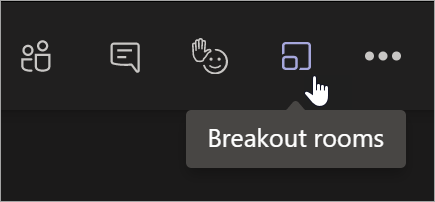
You must be a meeting organizer to see the option. Meeting attendees and presenters will not see the breakout rooms option.
You could refer here
to find out how to create and mange breakout rooms during class meetings.
|
 |
|
6. New Microsoft Teams Meeting Pre-join Experience
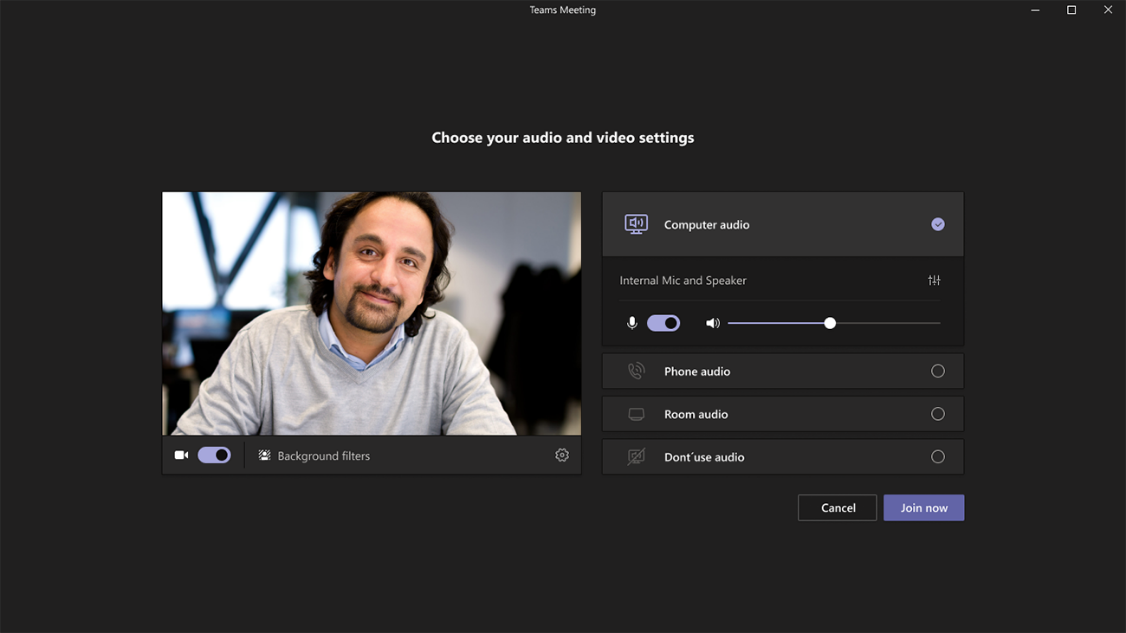
The new pre-join experience retains the video toggle underneath the preview window and adds quick and clear access to background filters.
All the available Audio options are detailed to the right of the preview window with the option to configure mic status,
speaker volume, devices and ability to add a Teams meeting room.
|
 |
7. Microsoft Teams: Meeting Recordings Saved to OneDrive and SharePoint Online
Starting from Jan 2021 postponed to Summer 2021, all new Teams meeting recordings will be stored on, and served from, OneDrive and SharePoint Online – instead of Microsoft Stream.
Non-Channel meetings will be stored in the OneDrive of the person who clicked the record button in a special folder labeled “Recordings” – that sits at the top of the recorder’s OneDrive.
Channel meetings will be stored in a folder labeled “Recordings” under a folder named after the channel under the Team’s document library.
|
 |
|