1. Microsoft 365 Tips
1. Free Microsoft Office App License for Students and Staff
Microsoft 365 enables current students and staff to install the latest version of Microsoft Office app on your PC/Mac, tablet or smart phone for free. Each student and staff can install Office on up to 5 PCs/ Macs, 5 tablets (iPad, and Android) or smart phones.
Software available for installation include:
For Windows

For Mac OS

For the detail installation guide, please login CPCE Portal and refer to the ‘Office 365 OWA User Guide’
As the free license is only available to current students and staff, users are required to uninstall Microsoft Office when they are no longer a member of the CPCE College community.

2.Collaborate on a project between members in the group
- Create documents and collaborate online (OneDrive for Business)
- Co-authoring and versioning
- Use Office Online to review and modify documents, PowerPoint by the members concurrently
- Online meeting (Teams)
- Create a plan, build a team, assign tasks, and update status—in a few easy steps. (Planner)
- Share calendars and schedule meetings (Calendar)
Organize your course content
- Organize your lesson plans and course content in your own
 digital notebook. digital notebook.
- Keep everything in a OneNote, and use its powerful search to find what you're looking for, even text in pictures or handwriting.
- Your notebooks are saved automatically and can be viewed from any devices, online or offline.
Click here to login your email account, click the top left icon  to access those features. to access those features.
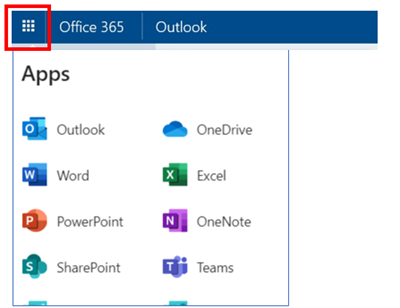
Microsoft also provide the related Apps for Android and Apple IOS mobile devices.


In order to find out more about the benefits of Microsoft 365, please reference to the Microsoft Office Training Center.
|