ISSUE

18


January 2013

ITU Logo with text

TOUCH BASE

e-Newsletter


Content

1. Availability of Windows 8 for Microsoft Work at Home Use Right (Staff Only)

2. Final Reminder, No Wi-Fi SSID : CPCE_Staff_M and CPCE_Student_M

3. Software Asset Management (SAM) Exercise 2013 (Staff Only)

4. Good Practices to Prevent Data Leakage

5. Offering from 3HK (Staff Only)

6. Useful Tool: Using Google Reader to Read RSS Feed


1. Availability of Windows 8 for Microsoft Work at Home Use Right (Staff Only)

ITU is pleased to announce Windows 8 is added to the portfolio of Microsoft Work at Home Use Right Software. CPCE staff member can install Windows 8 Enterprise Upgrade in their notebook computer / home PC if this right is not exercised before. For eligibility, terms and conditions of this offering, please access "Microsoft Work at Home Use Right Registration" under CPCE Portal (http://portal.cpce-polyu.edu.hk).

ITU is also working on user material for Windows 8 and it will be released soon. User is welcome to approach ITU Helpdesk at 3746-0818 (HHB) or 3746-0819 (WK) for any questions over it.

Windows 8

2. Final Reminder, No Wi-Fi SSID : CPCE_Staff_M and CPCE_Student_M

It is a final reminder that CPCE_Staff_M and CPCE_Student_M will be terminated after 31 January 2013. Users please change Wi-Fi profile immediately or approach ITU helpdesk for assistance if necessary.

Wifi Hotspot

3. Software Asset Management (SAM) Exercise 2013 (Staff Only)

Similar to last year, CPCE SAM exercise will be carried on February 2013. Information will be released to staff members soon and please help and maintain a good standard for managing software license through this exercise.

Software Asset Management

4. Good Practices to Prevent Data Leakage

Here are some good practices for users to prevent data leakage with reference to the IT Security Policy from PolyU ITS:

  1. Avoid storing sensitive data over Internet or Public Online Storage Space - Storing sensitive information on the Internet or Public Online Storage Space may cause data leakage if the access permission is not set up appropriately.


  2. Avoid using the file sharing or peer to peer software - Using the file sharing and peer to peer software will have a potential security risk of leakage of data or files in your system.


  3. Encrypt your files - Encryption mechanism such as WinZip AES encryption and TrueCrypt disk encryption with strong key authentication should be used when files are being transferred in removable media. Encrypted USB storage device may be used for additional level of protection.


  4. Avoid sending sensitive data over Internet e-mail - Sending sensitive information over an Internet e-mail may result in a copy of your data being stored or archived by a third-party server.


  5. Virus scan files from external source - Scan the files you have downloaded from the Internet before opening or saving them. Virus scanning is a critical step for data leakage prevention.


  6. Ensure physical security of your computer - Loss or theft of a computer, USB storage device or even printer, is a common cause of data loss.


  7. Do not leave printed documents unattended - Remember to collect all the printed documents from the network printer and ensure all print jobs are completed when you leave.


Above information is also available at ITU web site :
http://www.cpce-polyu.edu.hk/itu/index.php?option=com_content&view=article&id=163&Itemid=54

IT Security

5. Offering from 3HK (Staff Only)

There is continuous offering from 3HK on mobile phone and data plan. Interested users please visit "IT Mega Sales" inside CPCE Portal (http://portal.cpce-polyu.edu.hk) for details.

Mega Sales

6. Useful Tool: Using Google Reader to Read RSS Feed

We introduced the technology of RSS in previous issue of newsletter. This issue we will introduce a popular online RSS reader, Google Reader, to subscribe to your RSS-capable websites. Let's follow the use of Google Reader step by step.

Step 1: Login "Google Reader" with your Google account. If you do not have Google account, you can click the link below to register a Google account:
Register Google account
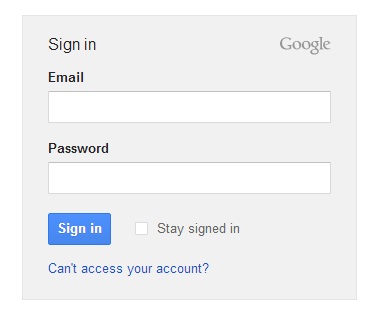
Google Reader Login page

Step 2: There is a "subscribe" button on the left hand side.
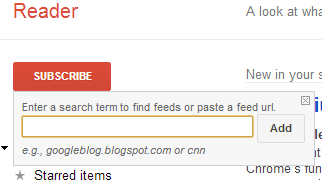
Google Reader Subscribe

Then, you may input any address of the website (URL) that is RSS-capable and press "Add". This action means you are going to subscribe the websites.

Step 3: After that, any new contents of your subscribed website will automatically display on your "Google Reader" in article-by-article format.

Also, you can use your iPhone and Android mobile phone to read your subscribed websites from "Google Reader" with a mobile app, some of them are free to download:

iPhone - Feedly
- MobileRSS Free
Android - Google Reader (Official)
- gReader (Google Reader | RSS)


Hope you can enjoy the power of RSS which automatically inform you the latest contents from your subscribed websites.

Google Reader