|
| August 2014 |

TOUCH BASEe-Newsletter
|
|
|
|

1. CPCE IT Mega Sales 2014
CPCE IT Mega Sales 2014 has started! A variety of IT products from Apple,
Asus, HP, Lenovo, Microsoft and Sony are available for CPCE members'
selection via online ordering and/or roadshow events.
User may check "IT Product Mega Sales" in CPCE Portal
for updated information. Interested students and staff are welcome to contact
vendors according to IT Mega Sales Page information for details.
|
 |
|
 |
2. Download Microsoft Office 365 ProPlus Applications for FREE
ITU is pleased to announce the availability of Microsoft Office 365 ProPlus applications. Details are as follows,
| Eligibility |
Full time staff and Student |
| Software available |
Microsoft Office ProPlus applications (Word, Excel, PowerPoint, OneNote, Access, Publisher, Outlook, Lync InfoPath)
|
| Copies |
Up to five home PC / personal notebook / Mac / Windows tablet as well as to install Office Mobile Apps on up to 5 mobile devices for free.
|
How to download and install Microsoft Office to your PC / Notebook / Mac / Windows tablet?
Please follow the instruction in this link to download and install the latest full version of Microsoft office
http://office.microsoft.com/en-us/office365-suite-help/install-office-with-office-365-HA102822111.aspx.
Note: this instruction is for Office 365 for business and is the same instruction for downloading Office 365 ProPlus applications.
Please use your CPCE AD account to login and download the software.
When my benefit will expire?
This benefit will expire when you leave or graduate from CPCE/HKCC/SPEED. Please uninstall the software or purchase a licensed copy before that.
How to deactivate and uninstall the software?
Please follow these steps
to uninstall the software when necessary.
|
 |
3. CPCE Email Policy
CPCE Email Policy is announced. Student and staff members are reminded to observe the policy as a guideline for using College Email system. The policy covers the following topics
- Accessing of E-mail
- Official College E-mail Account
- Standards of Acceptable Use
- Use of College E-mail Facilities for College Business
- Personal Use of College E-mail Facilities
- Preventing the Spread of Malicious Software
- Backup and Archiving
- Structure of E-mails
- Security, Privacy, Integrity and Confidentiality
- Deletion of E-mail Accounts
- Action in the Event of a Breach of the Standards of Acceptable Use
- Legal Consequences of Misuse of E-mail Facilities
CPCE Email Policy is accessible via under Email of CPCE Portal
|

|
4. Mobile Web Version of Moodle E-learning System
When using Internet browsers to access Moodle E-learning System
on mobile devices such as iPads, iPhones, Android phones and Windows phones,
the webpage will fit the resolution of different mobile devices automatically.
Users can access Moodle materials on mobile devices easily.
For Moodle native mobile apps which can be downloaded from App Store or Google Play are currently not supported by CPCE Moodle System.
ITU is working on enhancing the system to support a reliable Moodle apps. Details will be announced later.
|
 |
5. Turnitin™ User Guides and Video Tutorials for Students and Staff
With the launch of Turnitin service in Moodle, teachers can use Turnitin to check students' assignments against plagiarism and
students may require to submit their assignments to Turnitin. To learn to use Turnitin, users can view online or download Turnitin User Guides in
CPCE Portal,
please select [Moodle and Turnitin User Guide].
In addition, video tutorials are available in the user guides.
|
 |
|
6. Official CPCE Supported Browser
Owing to achieve best functionality and performance of Moodle E-learning System and Turnitin, Firefox 31 is an official supported browser. Users are strongly suggested to check the latest version of their Internet browser
to ensure the latest features of Moodle System can be supported. A free online tool is available for easy checking:
http://www.whatismybrowser.com/
Meanwhile, Turnitin's support for Internet Explorer 8 was officially end in July 2014.
Users are strongly suggested to use supported Internet browser such as Firefox 31.
|
 |
|
7. Moodle Course Backup and Restore for Staff
By using course backup, a course can be saved with all the materials or one of the topics/resources/activities.
Teachers can download existing backup for safe keeping or restore files as a new course or into an existing course.
Teachers can access CPCE Portal
to read the Moodle user guides for details.
User is welcome to contact ITU E-learning Team by email at
pfmoodle@cpce-polyu.eud.hk
or by phone at 3746-0569 for assistance.
|
 |
8. Minor Enhancements of Moodle
In the past academic year, ITU has performed minor enhancements on Moodle's features:
- When composing email using Moodle Mail, the content is auto saved in draft folder if not being sent.
- Course layout supports two new formats, namely TabTopics format and Grid format.
Users can access the Moodle user guides
in CPCE Portal for details.
|
|
9. New Printing Service(Black/White) in HHB & WK Campuses
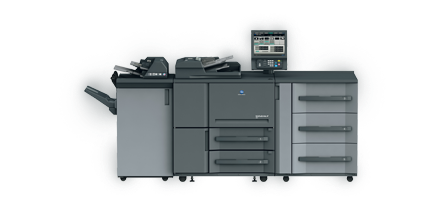
ITU is pleased to introduce a new printing system for students. This new system comes with a print quota management system and 17 heavy-duty printers.
These printers support high printing speed, large paper capacity, quota management, print-anywhere and built-in
dehumidifying heater features which enhance the overall printing service.
The printers have replaced some of the Oce printers in library(WK campus), express printing areas, Student Computer Centres(SCCs).
Who is eligible to use the new system?
Students with valid CPCE email account are eligible to use the system.
How to use the system?
Step 1: First-time Registration
Before using the system, students are required to perform the first-time registration.
For year 2 students, please bring along your student ID card to SCC for registration; for year 1 students,
please ignore this step as registration have been done for you automatically.
Step 2: Check your print balance then submit your print Job to Konica Minolta (KM) printer after login PC in CPCE campus
Step 3: Collect your print job at one of the KM printers by simply holding your student ID card over the card reader at the printer and then select your submitted print job
What is the Charging Rate?
- 2 print units /per A4 ; 4 print units/per A3
How many print quota do you have initially?
Each eligible student is entitled to have 2,000 print units for each academic year,
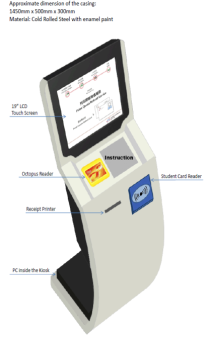
you and can top-up your print quota by Octopus card at iKiosk located at express printing area and SCC.
Tips to top-up your print balance
- The minimum top-up value is HK$5
- It is not suggested topping up too much value in your print balance (better less than $50) as print balance is non-refundable and non-transferrable at any time.
|
|
Should you have any enquiries, please contact our helpdesk at 3746-0818 (HHB) or 3746-0819 (WK) or email to
pfitoper@cpce-polyu.edu.hk.
|
 |
 |
|