ISSUE

54


January 2016

ITU Logo with text

TOUCH BASE

e-Newsletter


Content

1. Wi-Fi Printing Service for Student Notebook (Trial Run) in HHB & WK Campuses (Student Only)

2. Reminder: Note to Students Who Will Graduate or Leave From HKCC/SPEED (Student Only)

3. Disable of 'Clutter' Feature in Microsoft Office 365 Email Service (Staff Only)


1. Wi-Fi Printing Service for Student Notebook (Trial Run) in HHB & WK Campuses (Student Only)

ITU is undertaking the trial-run of Wi-Fi Printing Service in semester two 2015/16, 100 student notebooks are enabled with this new feature for loan on a first-come-first-served basis. Please indicate if you are interested in experiencing this Wi-Fi printing service when you borrow the student notebook at our counter.

The objective of this trial run is to enable students to experience campuses-wide Wi-Fi printing service then collect their feedback for service improvement.

You can collect your print job at any of the KM printers in your home campus. Below please find the locations of printers for reference.

HHB WK
Printing Services 1/F 3/F 6/F CLIB SCC S1/F SCC CLIB N7/F S9/F
B/W Printing
Color Printing

Points to note when using the Wi-Fi Printing Service

  1. Same print charging rate applies to this Wi-Fi Printing Service
    Black/White Printing
    • 2 print quotas/per A4 printed page
    • 4 print quotas/per A3 printed page

    Colour Printing
    • 15 print quotas/per A4 printed page
    • 30 print quotas/per A3 printed page

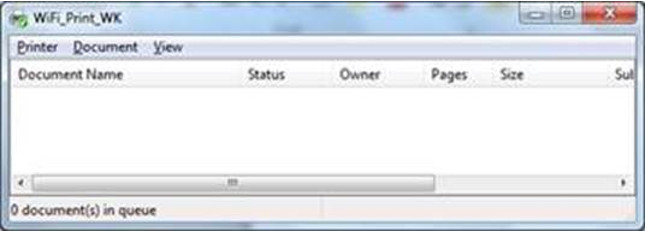
  2. Do not close the cover or shutdown the notebook immediately after submitting the print job. To ensure your print job submitted successfully, you can check the job status by clicking the print status icon at the lower right-hand corner.


  3. Avoid moving the notebook as you are submitting the print job. It can make sure the Wi-Fi signal is steady and strong enough to submit the job completely.

2. Reminder: Note to Students Who Will Graduate or Leave From HKCC/SPEED (Student Only)

Please note that the following IT services will be terminated after you graduate or leave from HKCC / SPEED

  • Student email account
  • Microsoft OneDrive bundled with student email account
  • Microsoft Office 365 ProPlus applications (Microsoft Office / Mac Office) offered via student email account
  • Print quota account
  • Student Notebook Loan Service
  • Campus Wi-Fi service, including Eduroam
  • Moodle
  • Campus PC / my.HKCC / my.SPEED / other systems login
  • Access to Student Computer Centre

Reminder:

  • Please backup data/files from the above systems if you need to keep them before graduation in order to prevent inconvenience and /or data loss.
  • Remaining balance in print quota account is non-refundable and non-transferrable at any time.
  • Should you have outstanding debit note for student notebook payment, you must settle it before graduation.
  • You may consider purchasing the Microsoft products at http://www.microsoftstore.com/ if you wish to continue using them after leaving HKCC/SPEED.

Students are welcome to contact ITU helpdesk at 3746-0818 / 3746-0819 or email to pfitoper@cpce-polyu.edu.hk for enquiry.

acrobat

3. Disable of 'Clutter' Feature in Microsoft Office 365 Email Service (Staff Only)

ITU has received some staff reports that they cannot find emails sent from college or their units. Those missing emails were unexpectedly found at their 'Clutter' folder. The built-in Clutter feature enabled by Microsoft last year intended to help users to move lower priority emails to Clutter folder automatically.

After consideration the need for this feature and the risk of missing important messages, ITU has disabled the Clutter feature in late December 2015.

If you want to learn more about the 'Clutter', please click here.

If you want to enable 'Clutter', please follow the steps below:

  1. Open OWA (http://email.cpce-polyu.edu.hk).
  2. Click the Settings () icon in the navigation bar.
  3. Click 'Options'
  4. Select the 'Clutter' and click the check box 'Separate items identified as clutter' to enable the 'Clutter' feature as shown below.
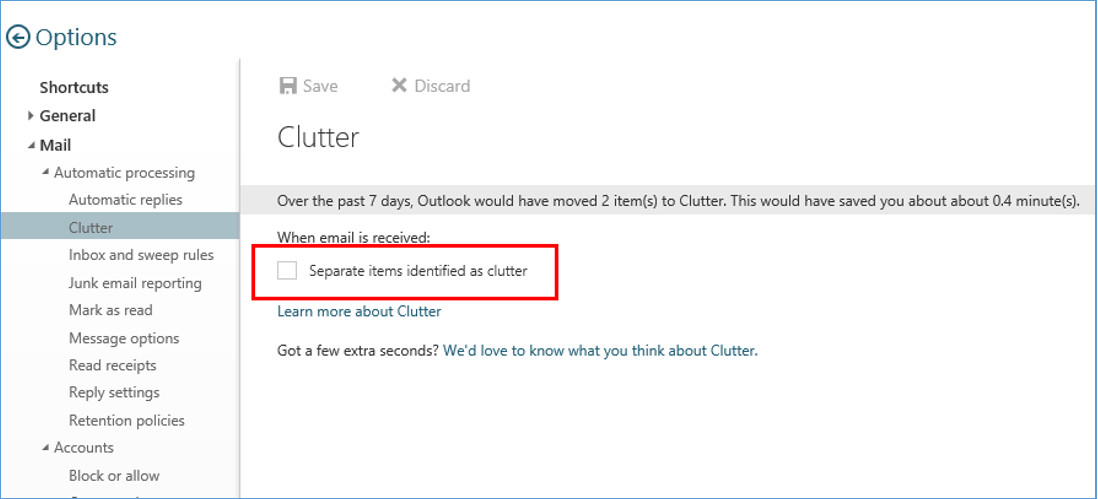
  5. Click the 'Save' button at the top.

If you have any enquiry, please contact ITU helpdesk at 3746-0818 (HHB) / 3746-0819 (WK) or email to pfitoper@cpce-polyu.edu.hk for further support.

CPCE Printer