1. Free MS Office 365 ProPlus License for Students and Staff

Office 365 ProPlus enables current students and staff to install the latest version of MS office on their PC/Mac, tablet or smart phone for free.
Each student and staff can install Office on up to 5 PCs/ Macs,
5 tablets (iPad, and Android) or smart phones.
Software available for installation include:
For Windows

For Mac OS

How to install?
For Student: Please refer to page 36 of "User Guide and FAQ (Office 365)" inside CPCE Portal.
For Staff: Please refer to page 36 of "Office 365 OWA User Guide" inside CPCE Portal.
Or you can login CPCE Portal and download the ‘Office 365 OWA User Guide’.
Collaborate on a project between members in the group

- Create documents and collaborate online (OneDrive for Business)
- Co-authoring and versioning
- Use Office Online to review and modify documents, PowerPoint by the members concurrently
- Online meeting (Skype for Business)
- Create a plan, build a team, assign tasks, and update status—in a few easy steps. (Planner)
- Share calendars and schedule meetings (Calendar)

Create and share interactive reports, presentations, and more |
|
Sway makes it quick and easy to create and share polished, interactive reports,
presentations, personal stories, and more. Add your content, and we'll do the rest. |
 |
Organize your course content |
- Organize your lesson plans and course content in your own digital notebook.
- Keep everything in a OneNote, and use its powerful search to find what you're looking for, even text in pictures or handwriting.
- Your notebooks are saved automatically and can be viewed from any devices, online or offline.
|
 |
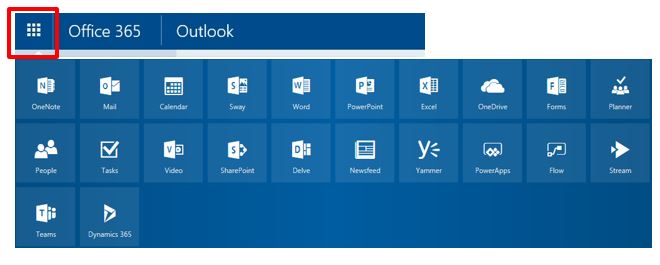
Click here to login your email account, click the top left icon  to access those features to access those features
Microsoft also provides the related Apps for Android and Apple iOS mobile devices.
In order to find out more about the benefits of Office 365, please refer to the Microsoft Office Training Center.
You may consider to buy the Microsoft Software License when you graduate or leave CPCE if you want to keep using the software afterwards.
|
 |
 |
2. Arrangement for High Volume Printing
Two printers are designated for high volume printing purpose. If you need to print more than 90 pages or your print job will take more than 3 minutes,
please use the following two dedicated printers inside Student Computer Centre(SCC) during opening hours of ITU helpdesk:
|
HHB |
WK |
| Printer Name |
Printer H8 |
Printer 10 |
| Location |
11/F, SCC |
5/F, South Tower, SCC |
- Students should make use of the heavy printing printers for large print jobs (i.e., more than 90 pages or will take more than 3 minutes to process);
- Please report us when you find someone is using non-heavy printing printer for high volume printing, ITU will record the abuse case and cancel the print jobs accordingly.
|
 |
|
3. IT Mega Sales 2017
ITU is pleased to announce the upcoming IT Mega Sales and roadshows will be arranged at different venues, details please refer to the table below:
| Brand |
Roadshow |
Enquiry |
| Apple |
Roadshow
7/9 - 9/9, 11/9 - 13/9 (12:00 - 19:00)
Student Display Area, UG, PolyU Hung Hom Bay Campus
18/9 - 23/9 (12:00 - 19:00)
Foyer, 2/F, South Tower, PolyU West Kowloon Campus
|
8200 0226
Mon - Fri: 10:30 - 19:00
Sat: 10:30 - 14:00
(Closed on Sun & Public Holidays) |
| Microsoft |
| Samsung |
| HP |
Roadshow
6/9 - 16/9
11:30 - 20:00 (Mon - Fri)
12:00 - 18:00 (Sat & Sun)
VA109-111, Shaw Amenities Building, PolyU Main Campus |
8208-6988
Mon - Fri: 10:30am - 7:00pm
Sat: 10:30am - 2:00pm
(Closed on Sun & Public Holidays)
(13,15-19/8 hotline starts at 10:00am) |
| Lenovo |
User may check IT Product Mega Sales in CPCE Portal
for updated information. Interested students and staff are welcome to contact the vendor for details.
|
 |
|
4. Download Link of IT Lab Software
There is a list of software download link of IT lab software made available in software inventory of CPCE Portal, student is welcome the page and downloads necessary software for the self-practice purpose.

|
 |
5. Network Cable is Removed in HHB Teaching Venue
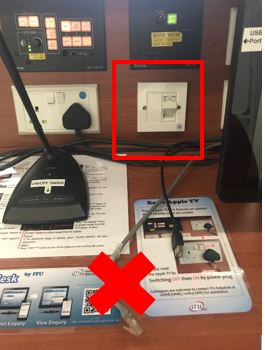
User is reminded network cable is removed in HHB teaching venue following WK campus arrangement.
User may consider to use campus Wi-Fi to access the internet in teaching venue or make use of network port on lectern (with a self-bring network cable) for cable connection.
|
 |
|
6. Getting Started With Power BI (Staff Only)
ITU is pleased to announce the Microsoft Office 365 Power BI was being set up for the CPCE staff.
Power BI is a suite of business analytics tools that deliver
insights throughout our institution. Connect to hundreds of data sources, simplify data prep,
and drive ad hoc analysis. Produce beautiful reports,
then publish them for our institution to consume on the web and across mobile devices. Everyone can create personalized dashboards with a unique, 360-degree view of your analysis in minutes.
Power BI helps you to…
- Explore your data wherever it is—in the cloud or on-premises—including big data sources such as Hadoop and Spark.
With connections to hundreds of sources and constantly growing, Power BI Desktop lets you draw deep insights for a broad range of scenarios.
- Create stunning reports with interactive data visualizations. Tell your data story using a drag-and-drop canvas and more than 85 modern data visuals from Microsoft
and partners—or create your own using the Power BI open source custom visuals framework. Design your report using theming, formatting, and layout tools.
- Get visual analytics to the people who need it. Create mobile-optimized reports for viewers to consume on the go. Publish from Power BI Desktop to the cloud or on-premises.
Embed reports created in Power BI Desktop into existing apps or websites.
Don’t Wait! Explore and Sign in the Power BI at https://powerbi.microsoft.com/en-us/ with your staff email account and see how it work.
In order to find out more about the benefits of Power BI, please reference to the guided learning
here.
|
 |
|
7. How to Improve Microsoft Outlook Performance? (Staff Only)
If your Outlook program freezes up every when you start it, it may be caused by large mailbox size on your email account or your managed functional account.
The following tips may "help and you should have a much faster Outlook experience.
1. Archive your Inbox
Instead of just letting those Inbox folders grow to outrageous proportions, set up auto archiving so that your Inbox retains only a portion of those emails e.g. keep the latest 180 days email in the Inbox and archive everything else.
When you archive, you effectively create a new data file, so Outlook doesn't have to strain against the weight of an oversize PST or OST file.
2. Use Cached Mode
If you use Cached Mode in Outlook, you effectively take the data file from the server and cache it on your local machine. This can go a long way toward speeding up your Outlook experience because Outlook doesn't have to read its data file
across a network.
3. Perform the housekeeping tasks regularly
- Delete any email messages, calendar items, and contacts that are no longer needed.
- Empty the Deleted Items folder by right-clicking it and selecting Empty Folder.
- Delete unwanted items from the Sent Items folder.
- Move items out of the Inbox to other mail folders.
4. Compact the PST files
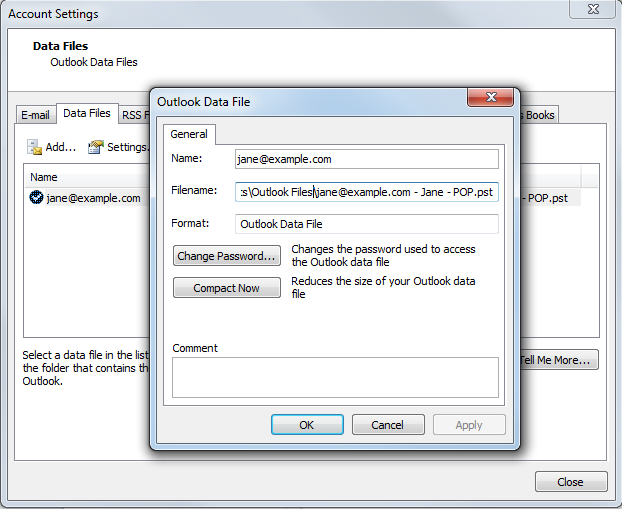
If your Outlook is mounting multiple archived PST files, you can help improve Outlook’s performance by compacting the PST files.
To compact a PST file in Outlook 2010, 2013 and 2016:
- Click on the File tab on the ribbon, and then select the Info tab.
- Click on Account Settings, and then click on Account Settings again.
- Click on the Data Files tab.
- Select your PST file in the list, and then click on Settings.
- On the General tab, click on Compact Now.
- Click "OK" and Close.
|
 |
|